Car Camera

M500 2.7K Dashcam

RM299.00
As low as RM24.91 / mo at 0% for 12 months
Option
Memory Size
In stock

Description

The 70mai M500 is a high-performance dash cam featuring 1944P resolution, a 170° ultra-wide lens, and built-in eMMC storage. It offers advanced safety with ADAS, GPS, and TPMS compatibility.


Dash Cam Example

Features

  • 1944P Ultra-High Resolution

Captures footage with a high 2592 x 1944 video resolution, ensuring vital details are visible in all lighting conditions.

  • 170° Ultra-Wide FOV

Provides an expansive field of view to minimize blind spots and capture more of the road ahead.

  • eMMC Built-in Storage

Offers more stable performance with faster reading and writing speeds compared to traditional SD cards.

  • Enhanced ADAS

Advanced driver assistance featuring Lane-Departure, Forward Collision, and newly added Pedestrian Collision warnings.

  • Built-in GPS & GLONASS

Automatically tracks and stores real-time speed and location data for easy review via the app.

  • Smart Voice Control

Enables hands-free operation to take photos or start video recordings using simple voice commands.

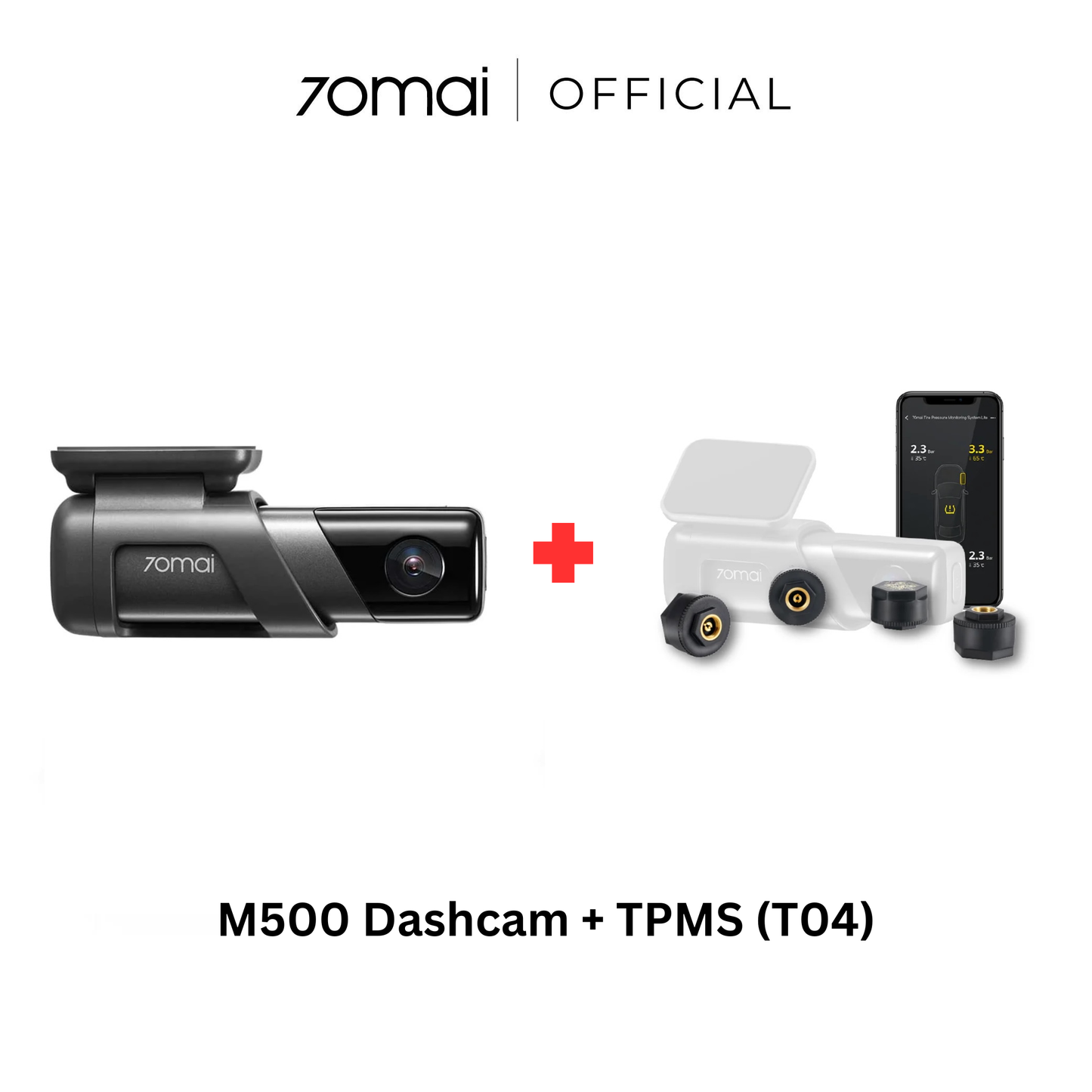
  • TPMS Compatibility

Pairs with tire pressure sensors to provide real-time alerts for punctures or low pressure.

What's Included

  • 70mai M500 Dashcam x1
  • Bracket x1
  • Power Cord (3.5m) x1
  • Dual USB Car Charger x1
  • Wiring Crowbar x1
  • Adhesive Sticker x1
  • Electrostatic Sticker x1
  • User Manual x1

Specifications

  • Resolution

2592 x 1944 (Front)

  • Screen Size

Screenless

  • Aperture

F2.0

  • Frame Rate

30FPS

  • Field of View

170°

  • Battery Type

Button Battery

  • Memory Card

Internal Up to 128GB

  • Compatible Hardwire Kit

• UP03 (Type-C)
• UP06 (Adjustable Kit Type-C)
• OBD (Type-C)

Warranty

18 Months Warranty

View full details

Frequently asked questions

1. Make sure the dash cam’s Wi-Fi hotspot is on. If it is not, press the power button to turn it on; 2. On your phone, turn off the wireless LAN (or WLAN) and then turn on again. If the problem still exists after doing the above, please contact us at service.help@70mai.com
If you enter the wrong password when connecting the hotspot and try to input the password again in a short time, iPhone may recognize your operation as invalid, and will pop up 'Cannot join the network' In this case, please exit the password input interface, back to the Wi-Fi hotspot list, select the dash cam’s hotspot and then reconnect. If the above operation still cannot make a successful connection, please forget the dash cam’s Wi-Fi hotspot in your phone’s WLAN list then reconnect.
The dash cam will automatically stop recording in the following situations: 1. Formatting the internal memory card 2. Restoring factory settings 3. Updating firmware 4. Any operation in the album when connected to the 70mai app 5. Detecting abnormality in the internal memory card, for instance, non-dash cam related files are detected. In this case, please format the internal memory card according to the voice prompts. The dash cam should automatically starts recording after exiting the above operations.
Below are possible reasons: 1. The dash cam’s positioning system fails to obtain positioning information and cannot generate driving record data. Solution: Check the status on the dash cam’s home screen. If the positioning icon is not shown, the dash cam’s positioning system is unable to obtain positioning information. Bring the dash cam to an open space and wait for around 3 minutes before trying again.2. The car did not move, so no driving record data is generated. Solution: Ensure that the dash cam is correctly installed in the car and working normally. Drive the car over a certain distance to generate driving record data. 3. Driving record data was not synchronized to the 70mai app. Solution: See the answer to 'How can I synchronize the driving record data saved in the dash cam to the 70mai app?” You can find the answer in the 70mai app. 4. The phone has no network connection. When viewing driving records, the phone requires a network connection to load the map. Solution: Disconnect the phone from the dash cam’s Wi-Fi hotspot and connect it to a network (WLAN or mobile data network). Tap My > Driving route to enter the 'Driving route” page to view the records.
70mai M500 Dashcam Product vendor

M500 2.7K Dashcam

RM299.00